The Membership Breakdown is a suite of reporting features focused on:
- Streamlining the generation of billing/invoices for PTSOs and/or Districts/Regions
- Capturing data at a specific moment in time (snapshot) to provide a singular reference point
- Provide additional summary and transactional data for each snapshot to admins at all levels (PTSO, District/Region, and club)
- Provide comparison tools, allowing admins at all levels to compare changes between two snapshots
- Provide transparency and audit efficiency for admins at all levels
Accessing the Membership Breakdown
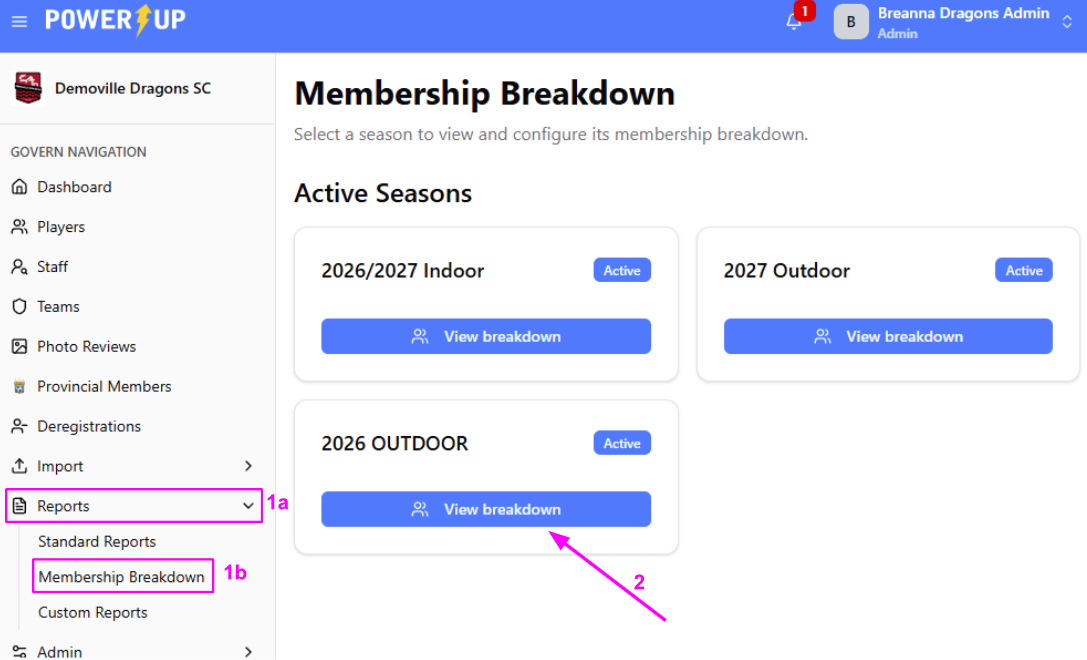
- After logging into the GOVERN module as a Club Administrator, navigate to the Reports option in the Govern Navigation menu on the left.
- Click it to expand the menu.
- Select the Membership Breakdown menu item.
- If there are multiple seasons available, click View Breakdown for the desired season.
Navigating the Membership Breakdown
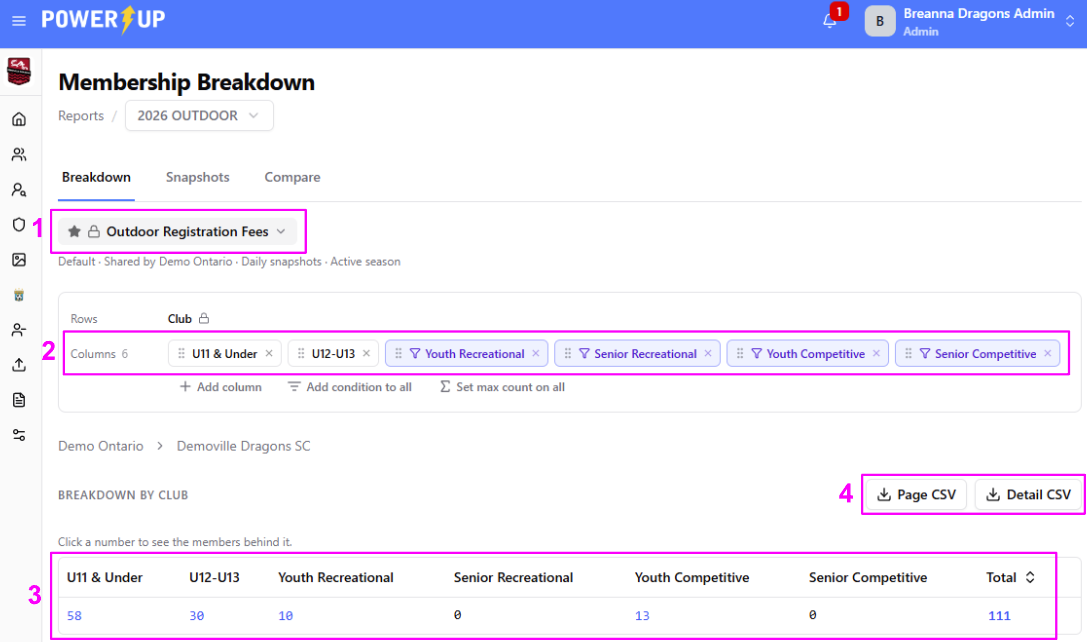
The Membership Breakdown’s default view is the “Breakdown” tab. This view shows the current live numbers and these will change in real time as new registrations are added or de-registrations processed.
- View Selection
Your PTSO may make multiple views available, depending on their requirements. Ensure you are viewing the correct report for your purpose, as viewing a different one may result in data not matching expectations.
In this example, we’re looking at the “Outdoor Registration Fees” view, which provides visibility to the club’s overall player count for billing/invoicing purposes. - Columns
The column groupings of registrations are configured by your PTSO as per their requirements. In this example, these represent the “Billing Groups” used by the PTSO to generate invoices. Note that these differ from the classifications used to record registrations. - Breakdown by Club
This is the actual report, providing data at each intersection. Any items in a blue font can be clicked to examine in more detail. - Export Options
The “Page CSV” exports the on-screen report. The “Detail CSV” exports each registration.
Snapshots
The “Snapshot” feature allows reference points at an exact moment in time to be created and viewed. This enables admins at all levels to review the same data.
For example: when a PTSO uses a snapshot for billing purposes, organizations at all levels of the eco-system (PTSO, District/Region, and Clubs) can access the same underlying data used to generate invoices.
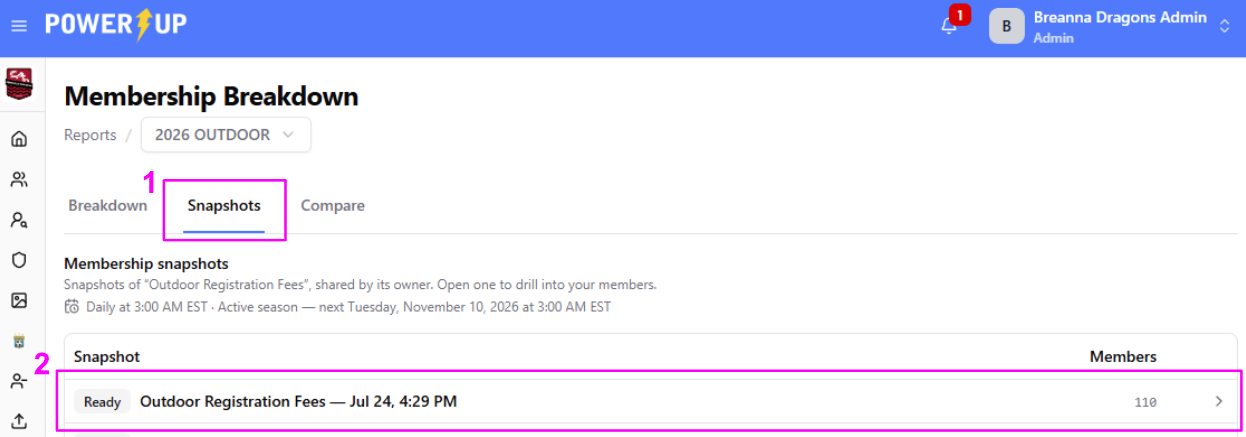
- To view the available Snapshots for the selected season, click the Snapshots tab.
- Click on the desired Snapshot from the list to view the information for it.
Clicking a snapshot opens the Membership Breakdown view, as it appeared at that exact moment in time, with all the same features and functions available.
Compare
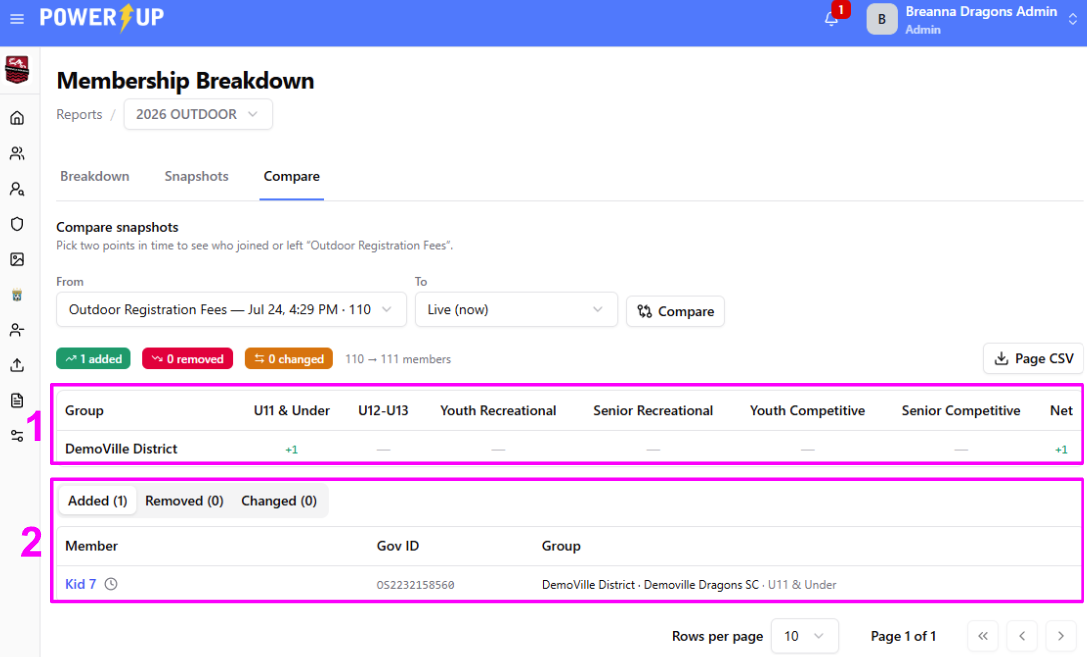
The Compare tab feature can be used to provide insight into changes between two snapshots, or between a past snapshot and the current status. It’s an easy way to see what’s changed (how many players were added? removed? changed?).
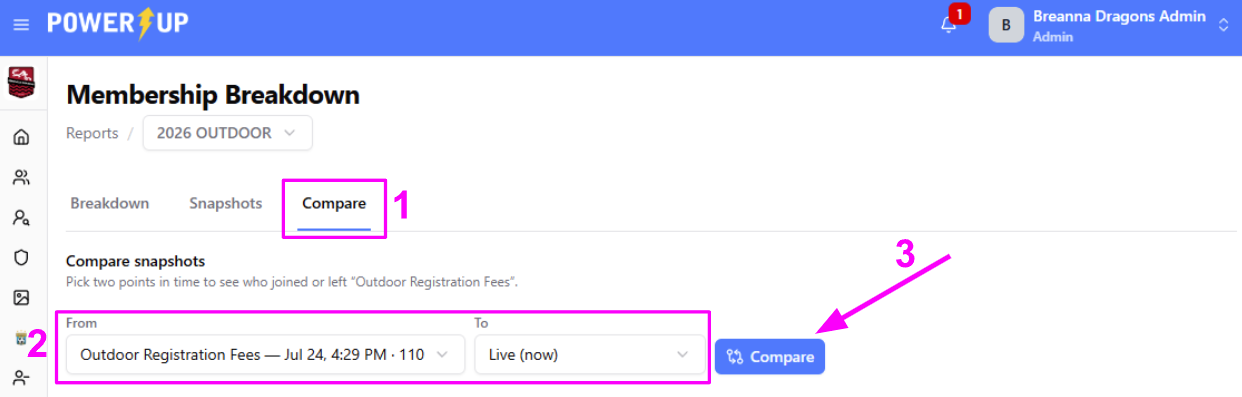
- To access the Compare feature, click the Compare tab
- Use the two dropdowns to select what you’d like to compare.
In this example, we’re comparing a past Snapshot from July 24 to live. - Click the Compare button to generate the comparison.
Once generated, you’ll be able to see:
- Group
This is a summary at the group level (in this case the club) of all the changes during the comparison period. - Member
This itemizes every registration change during the comparison period.
You can use the toggles to switch between Added / Removed /Changed (Billing Group).
Click a member’s name to jump directly to their profile.
Click the clock icon to the right of their name to jump to their Activity Log.
Was this article helpful?
That’s Great!
Thank you for your feedback
Sorry! We couldn't be helpful
Thank you for your feedback
Feedback sent
We appreciate your effort and will try to fix the article