From time to time, clubs may need particular players removed from an official (approved) team roster due to an injury or a transfer, or the removal of players who were synced/imported in error. Clubs do not have the ability to remove members from the season (i.e. undo an import) nor remove members from an approved roster; these are actions that a District Administrator must complete for the club.
De-Registration is required:
- Once a player has been approved by a District Administrator
- Once a player has been imported by a NON-PowerUp club
- Once an unrostered or unapproved player has been synced by a PowerUp club AFTER May 31st
The De-Registration action can be completed on either:
- The Team Roster page
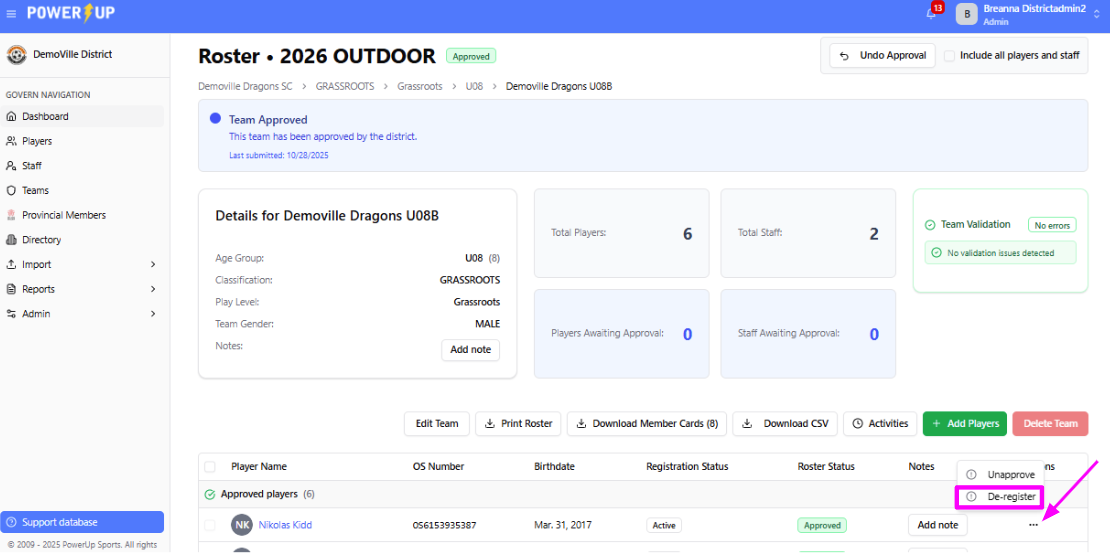
-OR- - The Member Profile page
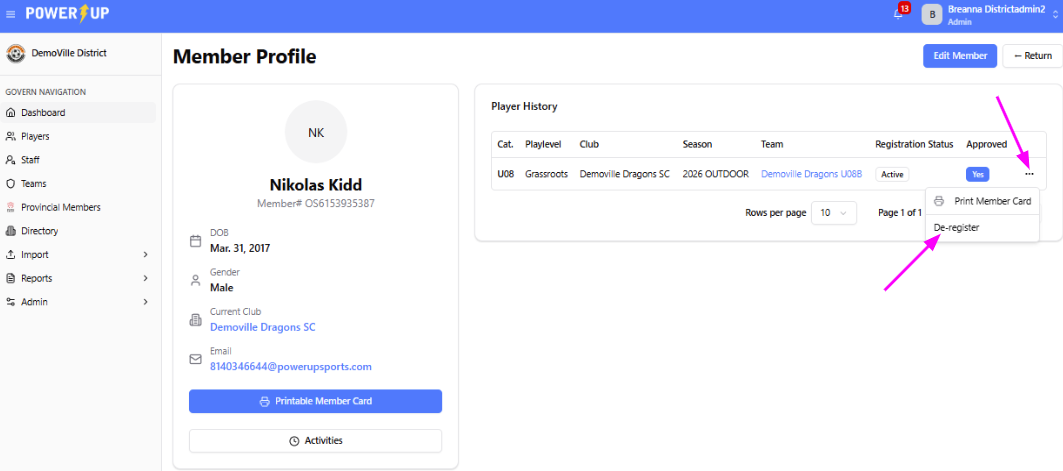
To de-register a player via the Team Roster page:
- Navigate to the Team Roster page for a team. You can get here by:
- Navigating to the Teams option (indicated in the screenshot below) in the Govern Navigation menu on the left of the page, then clicking the team name.
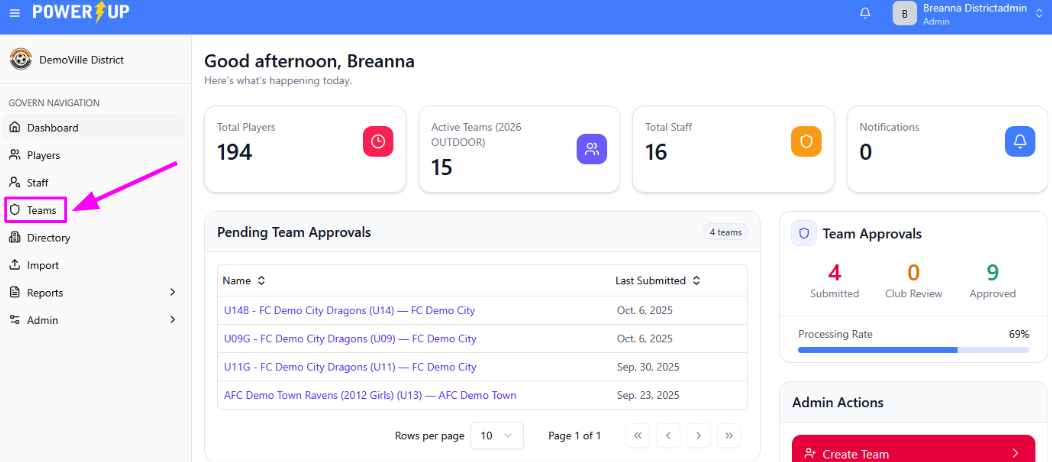
- Navigating to the Teams option (indicated in the screenshot below) in the Govern Navigation menu on the left of the page, then clicking the team name.
- For the player you wish to de-register, click the three dots in the Actions column on the right side of the page and select the De-Register option.
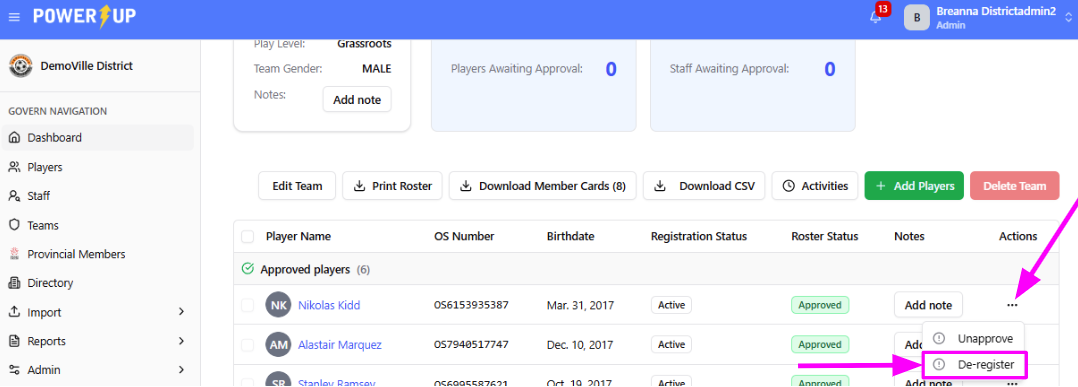
- Confirm you wish to start the De-Registration process.
- Select the Type of De-Registration:
- DBILL
Player is released; insurance ceases but still counted for billing.
E.g.: Player suffers a season-ending injury and needs to be removed from the approved roster, but was a part of the team/registered prior to de-registration. - DTRN
Player is released for transfer; insurance ceases, still billed.
E.g. Player has left club to go play for another club/organization. - DVOID
Registration is voided entirely; player was never registered/insured.
E.g. Player was imported/synced in error.
- DBILL
- Add a note (mandatory) and click Confirm when ready.
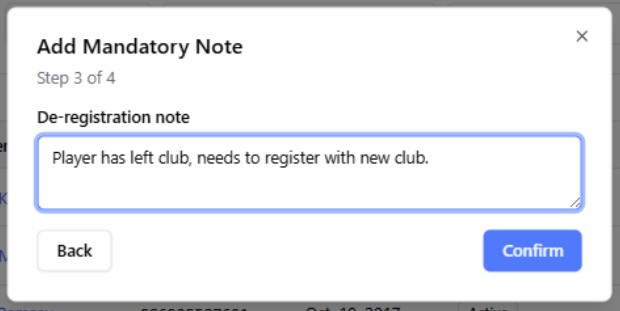
- Confirm the De-Registration details and click Final Confirm when ready.
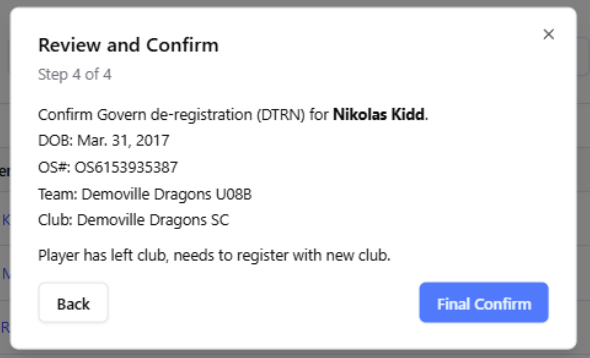
- The player is de-registered, and removed from the Roster. A De-Registered Players button becomes available, which when clicked results in a slideout appearing from the right, showing any de-registered players associated with that team.
The Member's Profile will also be updated with that new status.
The Team and Member Activities will be updated to reflect the de-registration.
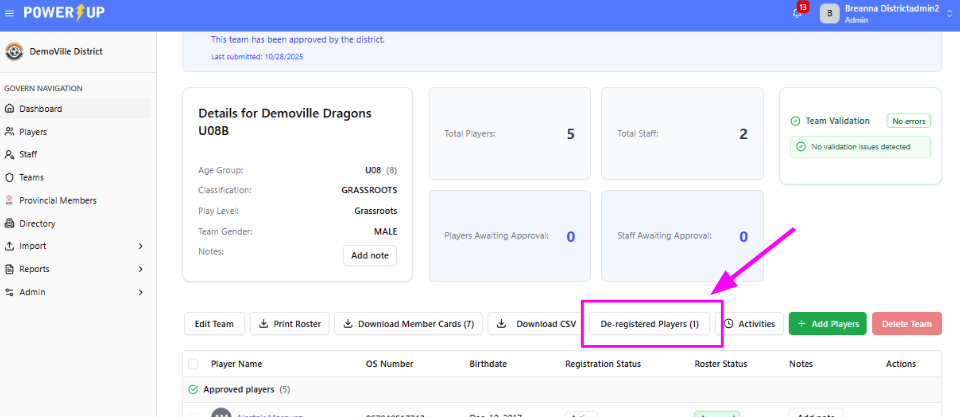 View of the De-Registered button that appears after a player(s) has been de-registered from a team roster.
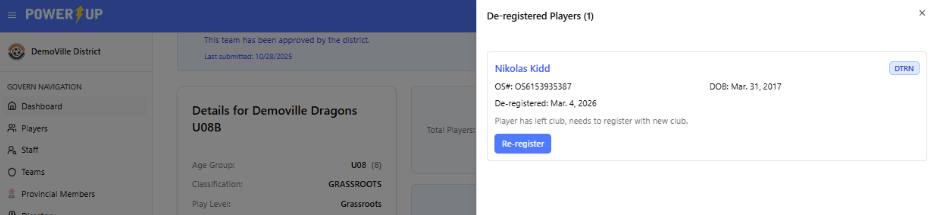
Example of a slideout that appears when an admin clicks the "De-Registered Players" button on the Team Roster page.
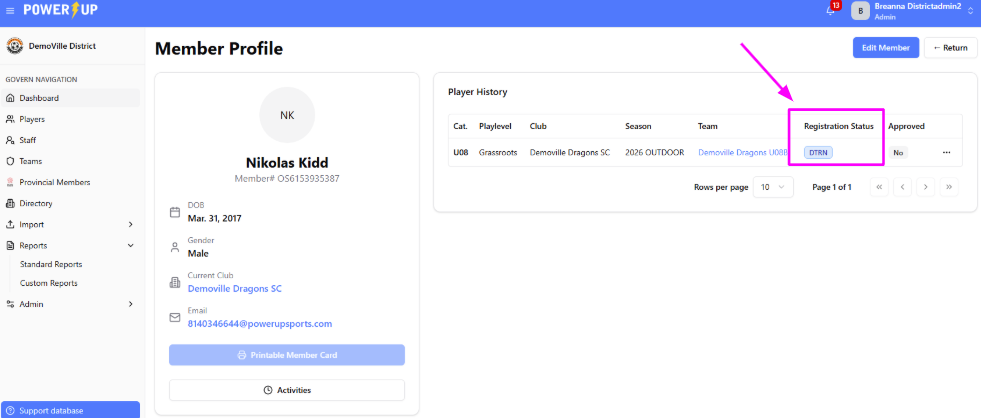 View of the player's updated status on the Member Profile page.
Process in Full:

To de-register a player via the Member Profile page:
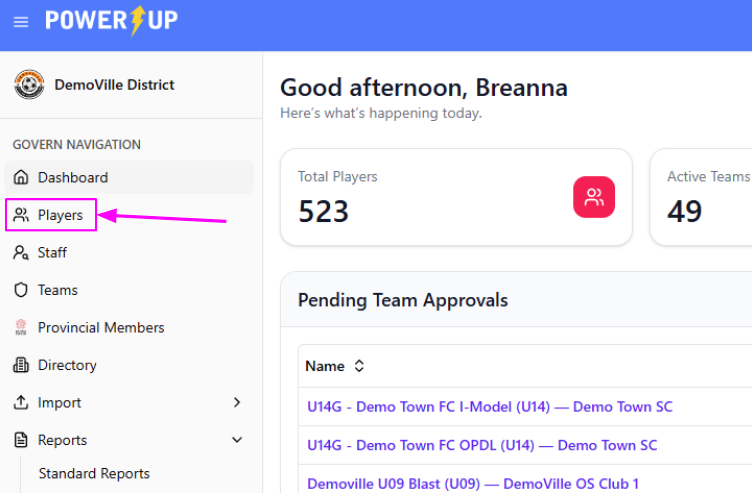
- Navigate to the Players page using the Players option in the Govern Navigation menu on the left.
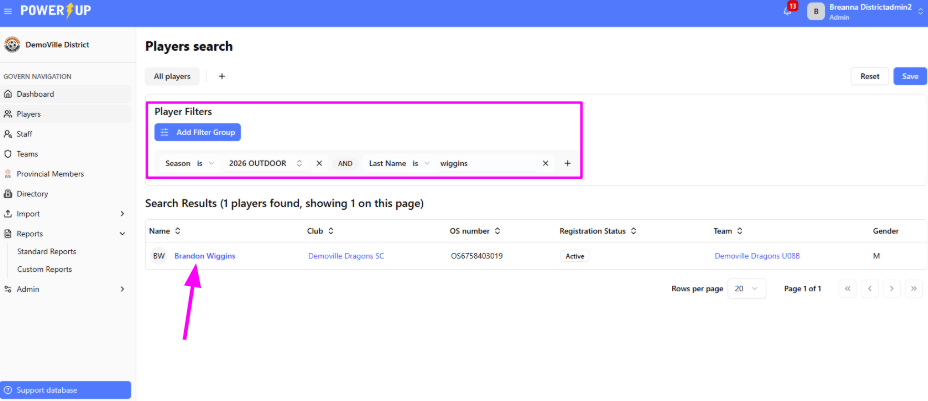
- Use the filters to search for the specific player you need to de-register. Click their name to access their Member Profile.
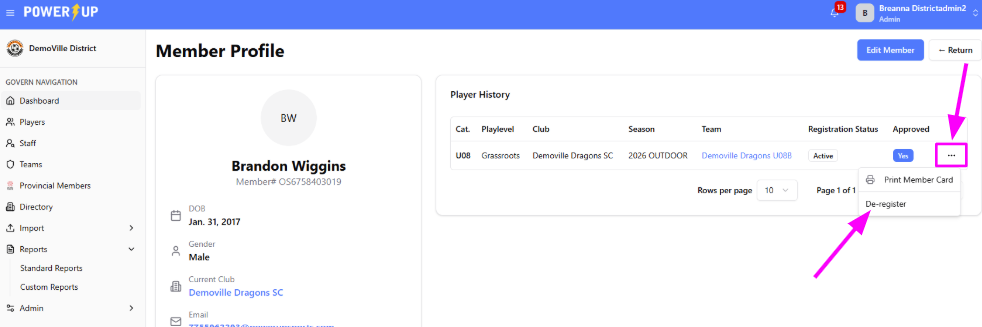
- Click the three dots on the right side of the registration assignment you wish to de-register the player from. Click the De-Register option in the menu that appears.
- Confirm you wish to start the De-Registration process.
- Select the Type of De-Registration:
- DBILL
Player is released; insurance ceases but still counted for billing.
E.g.: Player suffers a season-ending injury and needs to be removed from the approved roster, but was a part of the team/registered prior to de-registration. - DTRN
Player is released for transfer; insurance ceases, still billed.
E.g. Player has left club to go play for another club/organization. - DVOID
Registration is voided entirely; player was never registered/insured.
E.g. Player was imported/synced in error.
- DBILL
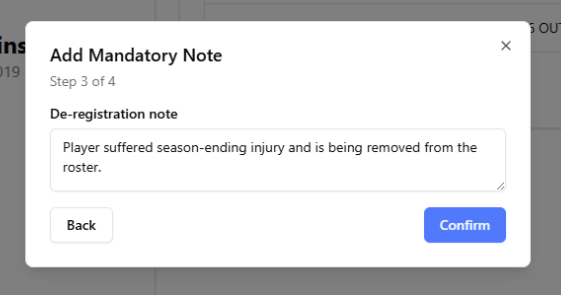
- Add a note (mandatory) and click Confirm when ready.
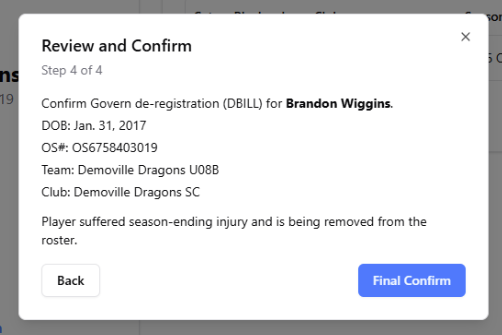
- Confirm the De-Registration details and click Final Confirm when ready.
- The player is de-registered. If they were on a roster, they are removed from it.
The player's Member Profile will also be updated with that new status.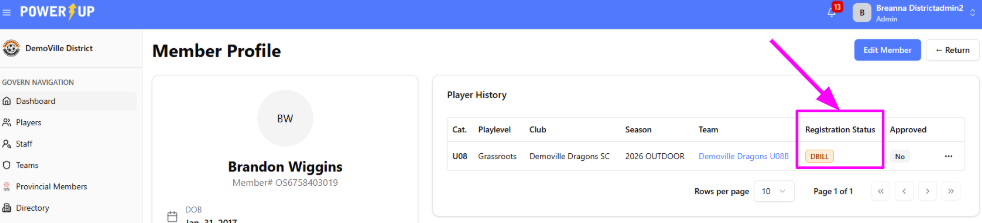
Process in full:

Was this article helpful?
That’s Great!
Thank you for your feedback
Sorry! We couldn't be helpful
Thank you for your feedback
Feedback sent
We appreciate your effort and will try to fix the article